
汉字 | EnglisheCapture (旁观者): Capture plaintext SSL/TLS traffic without a CA certificate using eB 2026-10-4 09:52:18 Author: kitploit.com(查看原文) 阅读量:12 收藏

汉字 | English




eCapture (旁观者): Capture plaintext SSL/TLS traffic without a CA certificate using eBPF.
[!IMPORTANT] Supports Linux and Android on x86_64 (kernel 4.18+) and aarch64 (kernel 5.5+). The kernel requirement applies per CPU architecture for both Linux and Android. Requires root privileges or specific Linux capabilities. Does not support Windows or macOS.
- Captures plaintext TLS/SSL traffic from OpenSSL, LibreSSL, BoringSSL, GnuTLS, and NSS/NSPR libraries.
- Supports plaintext capture for Go TLS programs, including HTTPS/TLS traffic in Go applications.
- Audits bash and zsh command history for host security monitoring.
- Audits MySQL queries and supports MySQL 5.6/5.7/8.0 and MariaDB.
Download
ELF binary file
[!TIP] Supports Linux/Android on x86_64 and aarch64.
Download the ELF binary package from the releases page, extract it, and run:
sudo ecapture --help
Docker image
[!TIP] Linux only.
# Pull the Docker image
docker pull gojue/ecapture:latest

# Run it
docker run --rm --privileged=true --net=host -v ${HOST_PATH}:${CONTAINER_PATH} gojue/ecapture ARGS
⚠️ Security note:
--privileged=truegrants full host access. For production use, prefer specific capabilities instead. See the Minimum Privileges Guide.
See Docker Hub for more information.
Capture OpenSSL plaintext data
sudo ecapture tls
eCapture automatically detects the system's OpenSSL library and starts capturing plaintext traffic. When you make an HTTPS request, such as curl https://google.com, the captured request and response are displayed:
...
INF module started successfully. moduleName=EBPFProbeOPENSSL
??? UUID:233851_233851_curl_5_1_172.16.71.1:51837, Name:HTTP2Request, Type:2, Length:304
header field ":method" = "GET"
header field ":path" = "/"
header field ":authority" = "google.com"
...
📄 For complete output examples, see docs/example-outputs.md.
Modules
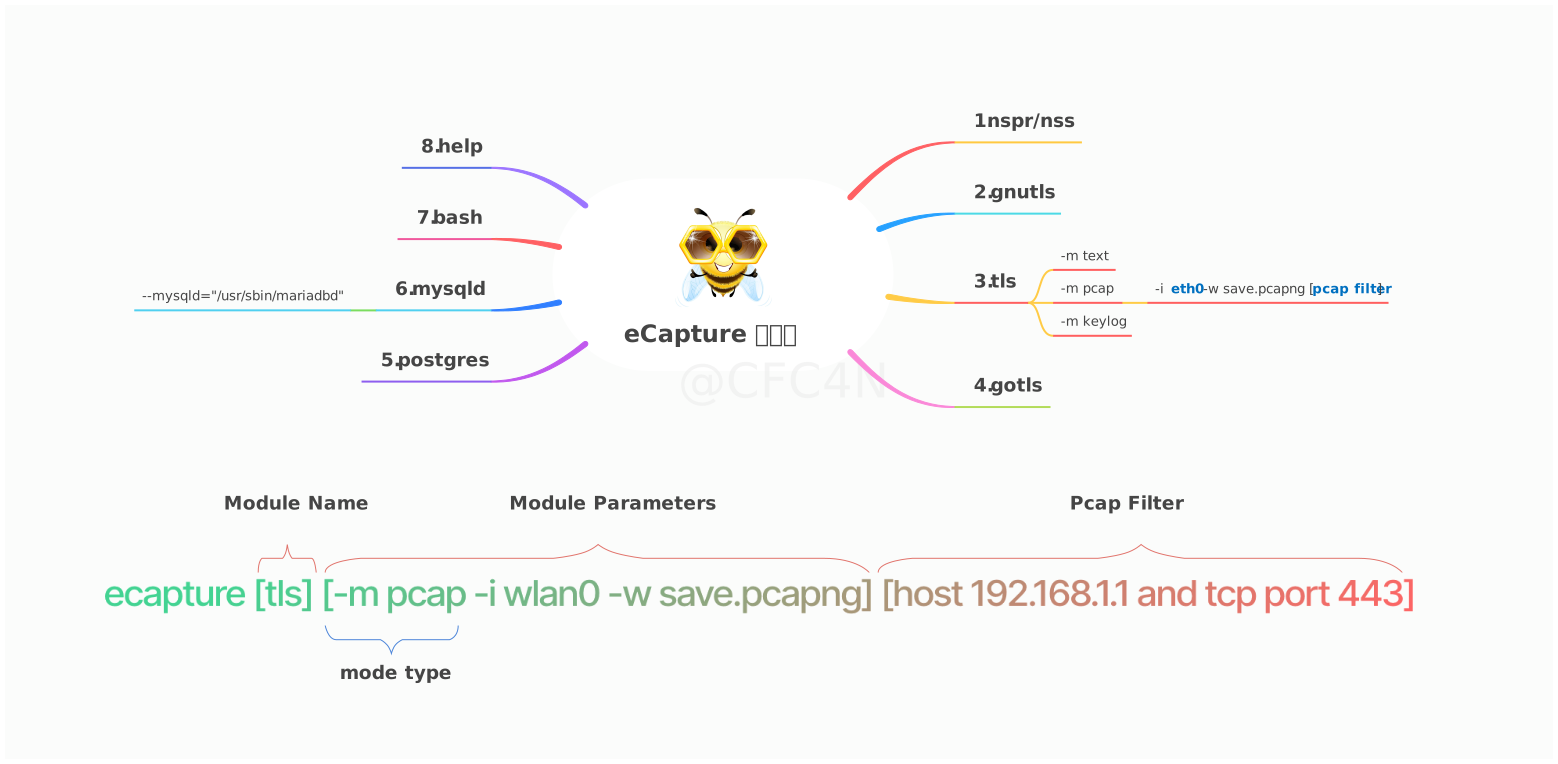
The eCapture tool includes 8 modules that can capture plaintext data from TLS/SSL libraries such as OpenSSL, GnuTLS, NSS/NSPR, BoringSSL, and GoTLS. It also supports auditing commands and queries from Bash, MySQL, and PostgreSQL applications.
- bash: captures bash commands
- zsh: captures zsh commands
- gnutls: captures plaintext from GnuTLS libraries without needing a CA certificate
- gotls: captures plaintext communication from Go programs using TLS/HTTPS
- mysqld: captures SQL queries from MySQL 5.6/5.7/8.0 and MariaDB
- nss: captures plaintext from NSS/NSPR libraries without needing a CA certificate
- postgres: captures SQL queries from PostgreSQL 10+
- tls: captures plaintext TLS/SSL traffic without a CA certificate (supports OpenSSL 1.0.x/1.1.x/3.0.x and newer)
You can use ecapture -h to view the full list of subcommands.
OpenSSL module
eCapture searches the default library paths from /etc/ld.so.conf to locate shared libraries and detect the OpenSSL library location. You can also set the library path explicitly with the --libssl flag.
If the target program is statically linked, you can set the program path directly as the value of the --libssl flag.
The OpenSSL module supports three capture modes:
pcap/pcapngmode stores captured plaintext data inpcap-NGformat.keylog/keymode saves TLS handshake keys to a file.textmode captures plaintext data directly, either writing it to a file or printing it to the console.
Pcap mode
Supports TLS-encrypted HTTP 1.0/1.1/2.0 over TCP and HTTP/3 (QUIC) over UDP.
You can specify -m pcap or -m pcapng together with --pcapfile and -i. The default value of --pcapfile is ecapture_openssl.pcapng.
sudo ecapture tls -m pcap -i eth0 --pcapfile=ecapture.pcapng tcp port 443
This command saves captured plaintext packets as a pcapng file, which can be opened with Wireshark.
📄 For complete pcapng mode output, see docs/example-outputs.md.
Keylog mode
You can specify -m keylog or -m key together with the --keylogfile option. The default output file is ecapture_masterkey.log.
The captured OpenSSL TLS master secret is saved to --keylogfile. You can also enable tcpdump capture and then open the file in Wireshark, setting the master secret path to view plaintext packets.
sudo ecapture tls -m keylog -keylogfile=openssl_keylog.log
You can also use tshark for real-time decryption and display:
tshark -o tls.keylog_file:ecapture_masterkey.log -Y http -T fields -e http.file_data -f "port 443" -i eth0
Text mode
sudo ecapture tls -m text
This outputs all plaintext data packets.
GoTLS module
Similar to the OpenSSL module.
gotls command
Capture TLS plaintext data.
Step 1:
sudo ecapture gotls --elfpath=/home/cfc4n/go_https_client --hex
Step 2:
/home/cfc4n/go_https_client
More help
sudo ecapture gotls -h
Other modules
Modules such as bash, mysqld, and postgres can also be used. You can view the full list with ecapture -h.
Videos
- YouTube video: How to use eCapture v0.1.0
- eCapture: supports capturing plaintext of Go TLS/HTTPS traffic
eCaptureQ GUI application
eCaptureQ is a cross-platform graphical client for eCapture that visualizes eBPF-based TLS capture capabilities. Built with Rust + Tauri + React, it provides a responsive, real-time interface for analyzing encrypted traffic without needing a CA certificate. It simplifies complex eBPF capture workflows and makes them easier to use.
It supports two modes:
- Integrated mode: unified Linux/Android execution
- Remote mode: Windows/macOS/Linux clients connect to a remote eCapture service
Event forwarding
如有侵权请联系:admin#unsafe.sh