Choosing colors for a website or user interface is often easier when you already have a visual refer 2026-8-12 17:10:38 Author: hackernoon.com(查看原文) 阅读量:0 收藏
Choosing colors for a website or user interface is often easier when you already have a visual reference. A photograph, illustration, product image, or screenshot can contain colors that work well together, but identifying their exact values by eye is difficult.
Instead of guessing, you can use an image color picker to select a color directly from an image and retrieve its digital color values.
For web developers and designers, this provides a simple way to turn colors from an existing visual reference into usable CSS values.
What Does It Mean to Pick a Color From an Image?
Digital images are made up of pixels. Each pixel contains information that represents its color.
When you select a point in an image with a color picker, the tool reads the color information at that location and represents it using a standard color format.
For example, the selected color might be represented as:
HEX: #6C4AB6
RGB: 108, 74, 182
These values can then be copied and used in CSS, design software, graphics applications, or other digital projects.
HEX vs. RGB: What's the Difference?
HEX and RGB are two common ways of representing colors on the web.
| Color Format | Example | Common Use |
| HEX | #6C4AB6 | CSS, websites, UI design |
| RGB | rgb(108, 74, 182) | CSS and digital graphics |
| RGB | hsl(264, 43%, 50%) | Adjusting hue, saturation, and lightness |
A HEX color uses six hexadecimal characters to represent the red, green, and blue components of a color.
RGB represents those same three channels as numerical values:
- R = Red
- G = Green
- B = Blue
For example:
color: #6C4AB6;
can also be written as:
color: rgb(108, 74, 182);
Both describe the same color.
An existing image can be a useful starting point for a website's color palette.
For example, imagine that you're building a landing page around a product photograph. Instead of choosing interface colors randomly, you can select colors from the photograph and use them as inspiration for buttons, backgrounds, borders, or accents.
Image-based color extraction can be useful for:
- Website color schemes
- UI and UX design
- Landing pages
- Brand-inspired interfaces
- Graphic design
- Presentation themes
- Social media graphics
The advantage is precision. Rather than trying to recreate a color visually, you can obtain its actual HEX or RGB value.
You can try to identify a color manually, but visual estimation is not very precise.
Two colors can look almost identical while having different numerical values. This becomes especially noticeable when you're trying to match colors across different elements of a website.
A digital image color picker removes much of this guesswork.
The basic process is:
Upload image → Select color → Get HEX/RGB values → Copy
This makes it easier to move a color from a visual reference into an actual design or development project.
The process is straightforward.
1. Choose an Image
Start with an image containing the color you want to use.
This could be a photograph, illustration, screenshot, product image, or any other suitable visual.
2. Upload the Image
Open an image color picker and upload your image.
The image is then displayed so you can inspect different areas.
3. Select a Color
Move the color picker over the part of the image containing the color you want.
Select the desired point or area.
4. Copy the Color Values
The selected color can then be represented as HEX and RGB values.
For example:
HEX: #6C4AB6
RGB: 108, 74, 182
Instead of manually converting between color formats, you can simply copy the value you need.
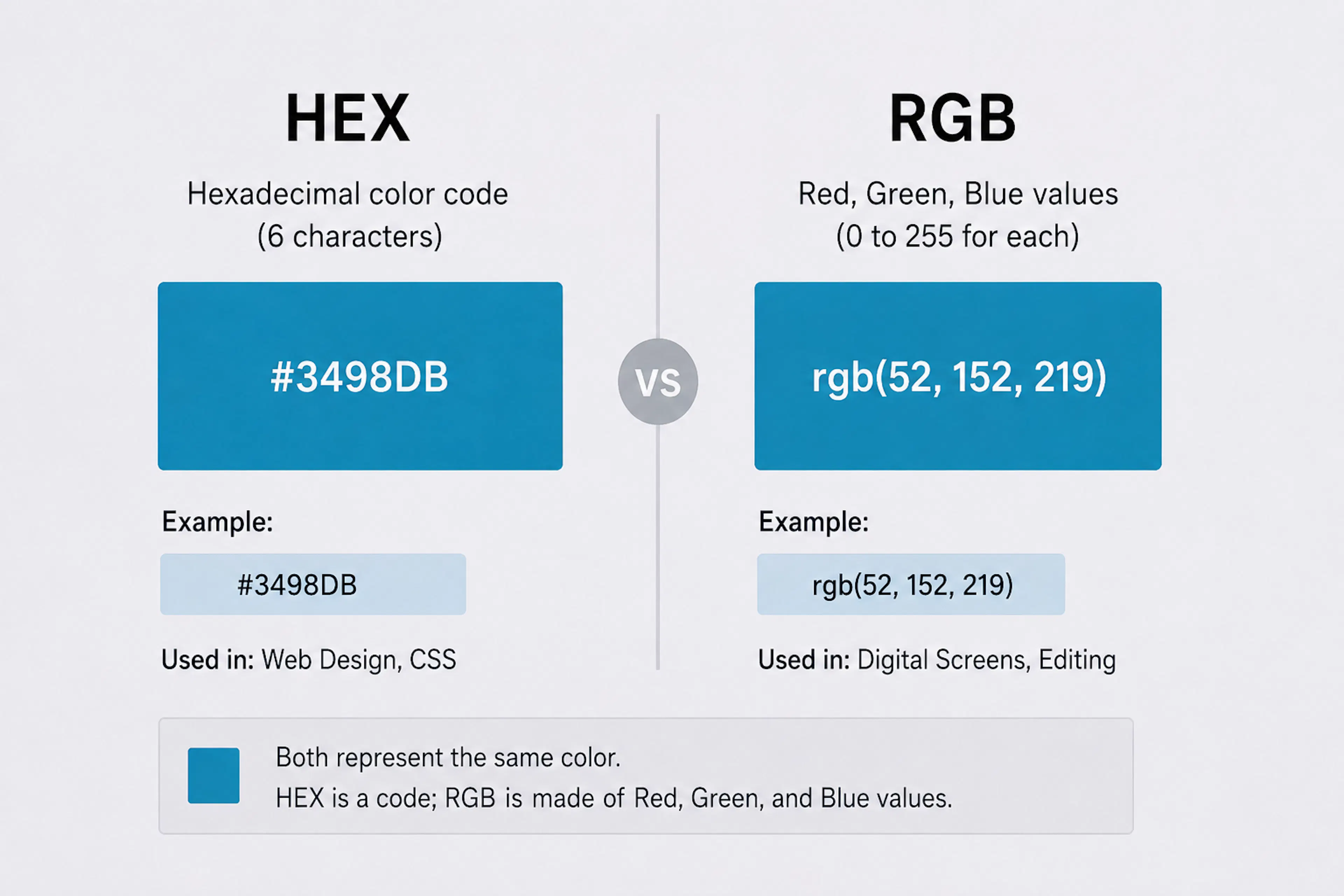 HEX code VS RGB value comparison
Once you have a HEX or RGB value, you can use it directly in your CSS.
For example:
.button {
  background-color: #6C4AB6;
  color: white;
}
Or using RGB:
.button {
  background-color: rgb(108, 74, 182);
  color: white;
}
This can be useful when you're trying to reproduce part of an existing visual style in a website.
A Practical Image-to-Color Workflow
Imagine you're creating a website around a product photograph.
You could use the following workflow:
- Upload the photograph to an image color picker.
- Select a prominent color from the image.
- Copy its HEX value.
- Use the color for a button or heading.
- Select another color for an accent or background.
- Test the resulting palette in the actual interface.
If you need to quickly select a color from an image and copy its HEX and RGB values, an online image color picker such as Imaglora can be used for this workflow.
The goal isn't to extract every color from an image. In most cases, a small selection of useful colors is enough to establish a consistent visual direction.
Choosing Colors for Accessible Interfaces
Extracting a visually appealing color is only one part of the process.
If you plan to use the color for text, buttons, or other important interface elements, you should also consider contrast and readability.
A color that works well as a large background may not provide enough contrast for small text.
After extracting a color, test it against the intended background and foreground colors. This helps ensure that the final interface remains readable and accessible.
When Is an Image Color Picker Useful?
An image color picker is particularly useful when:
- You already have a visual reference.
- You need an exact HEX value.
- You need an RGB value for CSS or another design tool.
- You want to match colors across different UI elements.
- You are creating a palette from a photograph or illustration.
- You want to avoid guessing colors manually.
It can be especially convenient during the early stages of a design project, when you're exploring different visual directions.
Final Thoughts
Extracting colors directly from images can make the design process more precise and less dependent on visual guesswork.
Instead of trying to recreate a color manually, you can select it from an image and obtain its HEX or RGB representation. Those values can then be copied into CSS or used in other digital design tools.
For developers, this creates a simple bridge between a visual reference and an actual interface. Designers can use the same approach to build palettes around photographs, illustrations, products, or other existing visuals.
The extracted color should still be treated as a starting point. Once you have the HEX or RGB value, test it in the actual design, check contrast, and adjust the surrounding palette where necessary.
如有侵权请联系:admin#unsafe.sh