嗯,用户让我总结这篇文章的内容,控制在100字以内,而且不需要用“文章内容总结”之类的开头。首先,我需要通读整篇文章,抓住主要信息。 文章讲的是苹果公司扩大了iOS 18的安全更新,修复了DarkSword攻击中的漏洞。DarkSword是一个完整的iOS漏洞利用工具包,利用六个漏洞,从访问恶意网站到完全控制设备。苹果最初只更新了部分旧设备,后来扩大了范围。用户需要检查更新,并采取额外的安全措施。 接下来,我要把这些要点浓缩到100字以内。要包括苹果扩大更新、修复DarkSword漏洞、六个漏洞导致设备被控制、用户如何检查和安装更新、以及额外的安全建议。 可能的结构是:苹果扩大iOS 18安全更新,修复DarkSword攻击中的六个漏洞,防止设备被恶意网站控制。用户应检查并安装最新版本,并采取额外安全措施。 这样应该符合要求了。 </think> Apple扩大了iOS 18的安全更新范围,修复了DarkSword攻击中利用的六个漏洞,以防止设备因访问恶意网站而被完全控制。用户应检查并安装最新版本,并采取额外安全措施以保护设备。 2026-4-2 14:13:44 Author: securityboulevard.com(查看原文) 阅读量:7 收藏
Apple widened its latest iOS 18 security update to cover far more iPhones and iPads, specifically to stop real‑world DarkSword attacks that can compromise a device from a single website visit.
After researchers published their findings about the DarkSword attacks and an exploit kit abusing the vulnerabilities appeared on GitHub, Apple quietly updated its March 24 security bulletin.
Apple first released iOS/iPadOS 18.7.7 on March 24 to a small set of older devices (iPhone XS/XS Max/XR and 7th‑gen iPad), fixing several vulnerabilities that are part of the DarkSword exploit chain. Newer devices that had the option to upgrade to iOS/iPadOS 26 had stopped receiving iOS 18 point updates, leaving a large group of users effectively stranded on vulnerable 18.x builds.
DarkSword is a full‑chain iOS exploit kit that strings together six vulnerabilities in WebKit, Safari, the dynamic loader, and the kernel to go from a browser visiting a malicious website to full device compromise. The chain has been observed in the wild since at least November 2025 in campaigns set up by commercial spyware vendors and state‑sponsored actors.
There is no need to tap a link in Messages or approve an install prompt. Just loading a compromised site or even a malicious advertisement inside Safari is enough to trigger the exploit chain if your device is still missing the relevant patches.
In this case, attackers combined six vulnerabilities, some already fixed, some still zero‑day at the time, into a cyber-weapon that could turn a routine website visit into a full device compromise and mass data theft. By the time the exploit chain’s details leaked and proof‑of‑concept code hit GitHub, hundreds of millions of devices were potentially exposed, and even “ordinary” users with no reason to fear state surveillance suddenly had to worry about their photos, chats, and crypto wallets.
How to update your iPhone or iPad
For years, many iPhone users have treated updates as a trade‑off between “features I don’t care about” and “battery life I do care about.” DarkSword, and Apple’s decision to reopen iOS 18 updates to more devices, is a reminder that there’s a third factor: silently accumulating risk.
For iOS and iPadOS users, here’s how to check if you’re using the latest software version:
- Go to Settings > General > Software Update. You will see if there are updates available and be guided through installing them.
- Turn on Automatic Updates if you haven’t already—you’ll find it on the same screen.
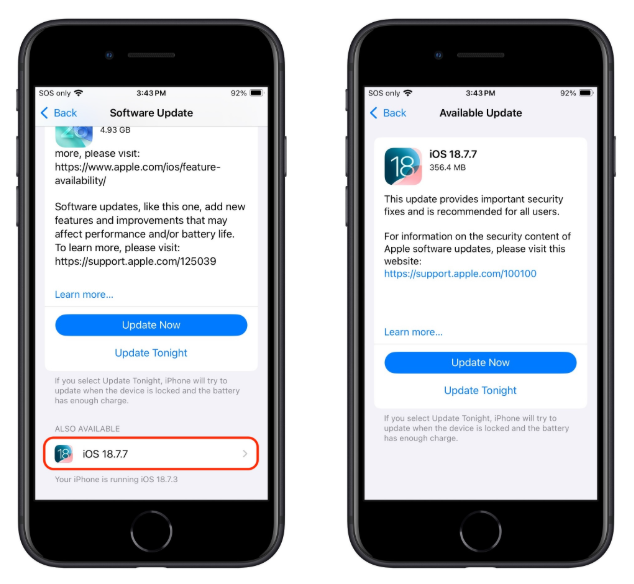
If you prefer, and many people do, you can stay on iOS 18 by using the Also Available option in Software Update and explicitly choosing iOS 18.7.7 instead of 26.4.
Exact steps on the iPhone
- Open Settings → General → Software Update.
- Wait for the page to load; you’ll see iOS 26.4 as the main, highlighted update at the top (assuming your device supports it).
- Scroll down on that same screen until you see a section called “Also Available” showing iOS 18.7.7.
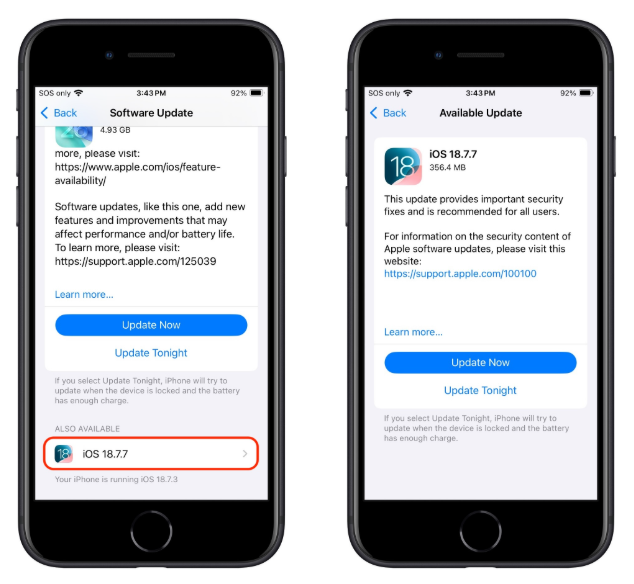
Image courtesy of TidBITS - Tap iOS 18.7.7, then choose Download and Install to apply that update instead of 26.4.
- Make sure you do not tap the big “Upgrade to iOS 26.4” button if you want to remain on 18.x.
Other advice to stay safe
If you have reason to believe you’re a potential target for attacks of this nature (journalists, activists, or people that have access to sensitive data) it is advisable to enable Lockdown Mode:
- Open the Settings app.
- Tap Privacy & Security.
- Scroll down, tap Lockdown Mode, then tap Turn On Lockdown Mode.
- Read the presented information and tap Turn On Lockdown Mode.
- Tap Turn On & Restart.
- Enter your device passcode when prompted.
Do inform yourself about the consequences of turning on Lockdown Mode. It makes your device a lot less user-friendly, but it has proven effective against highly targeted attacks.
More general tips:
- Use up-to-date, real-time anti-malware protection for your device to block malicious websites where possible.
- Avoid following links sent in unsolicited messages, especially for services like Snapchat, crypto exchanges, banking, or email.
- Use content blockers (for example Malwarebytes Browser Guard) in Safari to reduce exposure to malicious content (though they are not a silver bullet for zero‑days).
- Move high‑value crypto assets to hardware wallets or dedicated devices, and use mobile wallets only for smaller amounts.
- Use a password manager with strong authentication, and turn on extra security settings like Face ID/Touch ID and avoid auto‑filling high‑risk credentials.
- Enable multi-factor authentication (FIDO2 security keys or app‑based 2FA) on exchanges and financial accounts, so stolen passwords alone are not enough to plunder your accounts.
- Regularly review app permissions and revoke access to sensitive data (Location, Photos, Contacts, Microphone, Camera, Health) revoke where unnecessary.
We don’t just report on phone security—we provide it
Cybersecurity risks should never spread beyond a headline. Keep threats off your mobile devices by downloading Malwarebytes for iOS, and Malwarebytes for Android today.
*** This is a Security Bloggers Network syndicated blog from Malwarebytes authored by Malwarebytes. Read the original post at: https://www.malwarebytes.com/blog/news/2026/04/apple-expands-darksword-patches-to-ios-18-7-7
如有侵权请联系:admin#unsafe.sh