嗯,用户让我用中文帮他总结一下这篇文章的内容,控制在一百个字以内,而且不需要用“文章内容总结”或者“这篇文章”这样的开头,直接写描述。好的,首先我需要通读整篇文章,抓住主要内容。 文章主要讲的是GrapheneOS,这是一个基于Android的开源隐私保护操作系统。它通过增强应用沙盒、权限控制、数据加密等手段来保护用户隐私和安全。然后文章详细介绍了如何在Google Pixel手机上安装GrapheneOS的步骤,包括进入开发者模式、解锁 bootloader、安装系统镜像等。 所以总结的时候,我需要涵盖GrapheneOS的特点和安装步骤。特点包括隐私保护、安全增强、开源透明等。安装步骤虽然详细,但可以概括为分步指南。 接下来要控制在100字以内,所以要简洁明了。可能的结构是先介绍GrapheneOS是什么,然后提到它如何保护隐私和安全,最后说明文章还提供了安装步骤。 比如:“文章介绍了GrapheneOS——一款基于Android的开源隐私操作系统,通过增强应用沙盒、权限控制和数据加密等功能保护用户隐私与安全,并提供在Google Pixel手机上安装的详细步骤。” 这样大约是50字左右,符合要求。 </think> 文章介绍了GrapheneOS——一款基于Android的开源隐私操作系统,通过增强应用沙盒、权限控制和数据加密等功能保护用户隐私与安全,并提供在Google Pixel手机上安装的详细步骤。 2025-10-28 15:35:10 Author: www.hackingarticles.in(查看原文) 阅读量:41 收藏
In today’s world, our smartphones carry more personal information than ever — from private chats and photos to banking details and real-time location data. Protecting this information has become essential, not optional. For those who value privacy and security above all, GrapheneOS offers a powerful solution. It’s an open-source, privacy-focused operating system built on Android, designed to harden your device against tracking, data leaks, and cyber threats.
In this article, we’ll walk you through how to install GrapheneOS on your Google Pixel step-by-step — turning your phone into a truly privacy-protected mobile device.
Normal Android = convenience first, privacy later.
GrapheneOS = privacy and security first, convenience managed smartly.
How GrapheneOS Helps Protect Privacy
GrapheneOS is a privacy and security-focused version of Android. It looks and feels like normal Android but gives much stronger protection.
- Open-source and transparent
- GrapheneOS is open-source, meaning anyone can check the code.
- There’s no hidden tracking or secret data collection behind the scenes.
- Stronger app sandboxing
- Each app is isolated (sandboxed) so it can’t access other apps’ data.
- For example, your banking app cannot read files from your photo gallery or messages.
- Better permission control
- You can allow or deny access for each app — like location, camera, microphone, or contacts — easily and more strictly.
- It even supports “only while using the app” permissions for added safety.
- No Google tracking by default
- GrapheneOS doesn’t come with Google services built-in.
- You can install them if you want, but they’ll run in a sandbox, with limited access to your personal data.
- Secure app installs
- Apps are verified more carefully before installing, reducing the risk of malware or fake apps.
- You can use trusted stores like F-Droid or the sandboxed Google Play.
- Enhanced memory and file protection
- GrapheneOS adds extra layers of protection so that even if one app is hacked, the hacker can’t reach your system files or other apps data.
- This also helps protect saved passwords, tokens, and encryption keys.
- Improved network and location privacy
- The system limits how apps use your network data (like Wi-Fi, Bluetooth, and IP address).
- It prevents background tracking and location leaks through hidden methods.
- Faster and more secure updates
- Security updates are released quickly — often faster than most Android versions.
- This keeps your device protected from the latest discovered threats.
- No pre-installed bloatware
- There are no unnecessary apps collecting your data in the background.
- You decide what gets installed and what runs on your device.
- Supports encryption by default
- All data on your phone is encrypted (locked) using strong keys.
- Even if someone steals your phone, they cannot read your files without your password or PIN.
Step-by-step guide to installing Graphene OS on a Pixel Phone.
Step 1 – Open Settings from Menu.

Step 2 – Go to About Phone.

Step 3 – In the About Phone Section, Click on Build Number 7 times until you see – You are now a developer! Toast message on the screen.

Step 4 – Once the toast appears, tap on the back arrow on the top left to navigate to the previous menu.

Step 5 – Now, tap on System Option here

Step 6 – Go to Developer options in the System Section.

Step 7 – Enable the Use Developer Options toggle that appears on the screen.

Step 8 – Scroll down and look for OEM unlocking, click on the toggle to enable.

Step 9 – On enabling the OEM unlocking, it shows a security warning, tap on Enable and proceed.

Step 10 – In the same section, also enable the USB debugging

Step 11 – A security message appears on the screen again, click on OK and proceed.

Step 12 – Now, we will configure the next steps from a Windows system. Visit https://grapheneos.org/ and click on Install GrapheneOS button.

Step 13 – It takes to the Install tab on the website, there you will find a hyperlink saying – command-line installation guide. Click on the hyperlink.

Step 14 – It will open CLI install guide, find a hyperlink for official releases and click on it.

Step 15 – It will take you to the Releases page, select your Pixel Device Model, I have Pixel 6a, so I’ll proceed with it.

Step 16 – From the Stable Channel section, Click on Install zip and let the files download in the background. Once downloaded, extract and save the path, this path will be required further in Step 31 of this article.

Step 17 – Visit another website – https://developer.android.com/tools/releases/platform-tools and click on Download SDK Platform-Tools for Windows, from the Downloads section on the page. Follow the steps and download the .zip file, extract the .zip file and copy the path for that location.

Step 18 – Press Windows + R, Run window opens up, write sysdm.cpl in the text box and click on OK.

Step 19 – System Properties window opens up. Click on Environment Variables button on the bottom right.

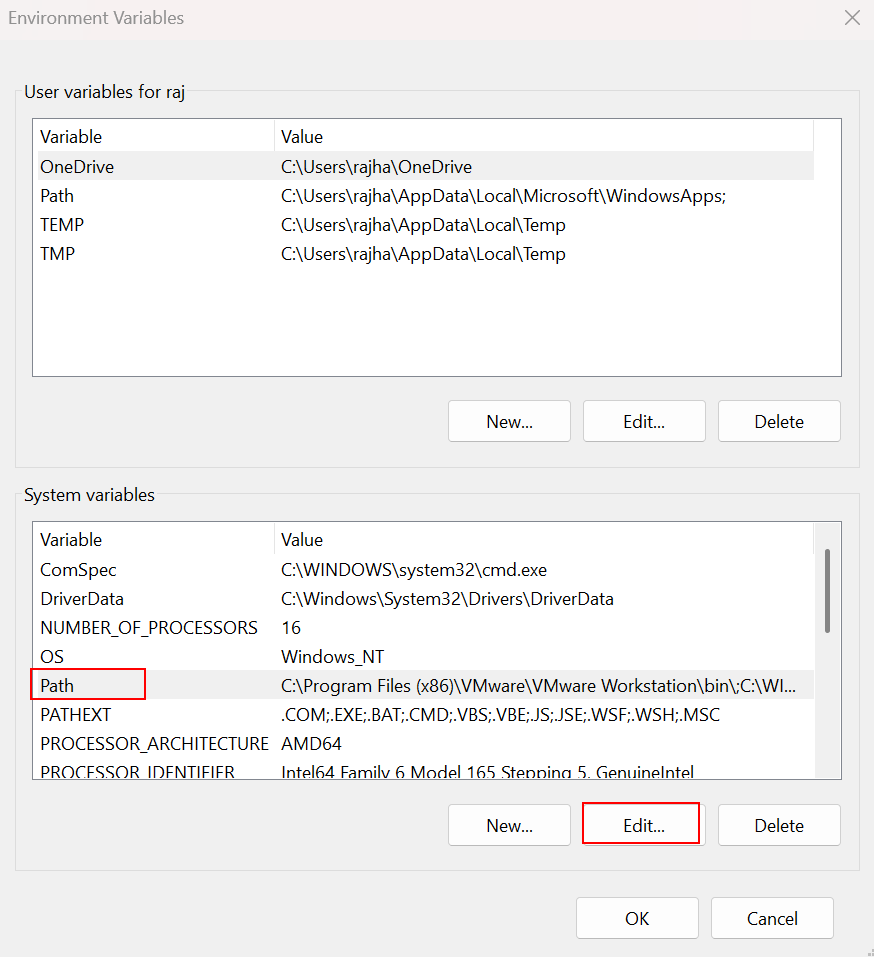
Step 20 – A new Windows opens up for Environment Variables. Click on Path inside System variables and click on Edit button.

Step 21 – Click on New button and add the path copied in Step 17.

Step 22 – Once the path is added, click on OK button.

Step 23 – Now, connect your Pixel device to Windows using USB and open Command Prompt as administrator. Enter the command – adb devices, it will show the List of devices attached.

Step 24 – Meanwhile, a popup comes on the mobile screen, which says – Allow USB debugging ?, tap on Always allow from this computer checkbox and tap on Allow.

Step 25 – Now, on the command prompt, in Windows, run the command – adb reboot bootloader, this will open the bootloader on the phone.

Step 26 – This screen appears on the phone. You can see the Device state is currently. locked, now we will proceed to unlock it.

Step 27– Now, run the command – fastboot devices and then, fastboot flashing unlock, and follow the next steps carefully.

Step 28 – Security message appears on the screen; you can interact with the phone using the Volume Up and Volume Down keys.

Step 29 – Now, click on Power button on the phone to Unlock the bootloader

Step 30 – You can see on the screen that, Device state is now changed to unlocked. Now, the device is ready to install Graphene OS. —

Step 31 – In the command prompt, navigate to the directory where you downloaded Graphene OS, use the path from Step 16, then, execute the bat file named – flash-all.bat, this will show the Available devices again and automated commands will be executed in progression. Wait for it to finish.

Step 32 – The Graphene OS is installed successfully, Since the bootloader is unlocked, we need to lock it again. Run the command – fastboot flashing lock

Step 33 – The security message appear on the Phone, use Volume Up and Volume Down keys to navigate.

Step 34 – Now press the Power button on the phone, to Lock the bootloader.

Step 35 – The device state on the screen changed to locked. Press the Power button on the phone to boot.

Step 36 – As you can see, the phone boots to Graphene OS. Do the First-time setup and enjoy using Graphene OS with added protection in this online world.

Conclusion
You’ve now successfully installed GrapheneOS on your Pixel device — giving your phone a fresh start focused on privacy, security, and control. Unlike standard Android, GrapheneOS puts you in charge of what data gets shared, which apps get access to your personal information, and how your device behaves behind the scenes.
By choosing GrapheneOS, you’ve taken a strong step toward protecting your digital life. Whether it’s reducing background tracking, limiting unnecessary permissions, or strengthening system security — you now have a phone that truly respects your privacy.
Remember:
- Keep your system and apps updated regularly.
- Install apps only from trusted sources.
- Review permissions often to make sure every app has only what it really needs.
Privacy isn’t about hiding — it’s about having control. And with GrapheneOS, you now have that control built right into your everyday device.
To learn more on Open-Source Intelligence (OSINT). Follow this- Link
Author: Muskan Sen is a Researcher and Technical Writer specializing in Information Security. Follow her – Linkedin
如有侵权请联系:admin#unsafe.sh