
好的,我现在需要帮用户总结一篇文章的内容,控制在100个字以内,而且不需要用“文章内容总结”之类的开头,直接写描述即可。首先,我得仔细阅读这篇文章,了解它的主要内容。 文章主要讲的是微软发布了Windows 11的累积更新KB5072033和KB5071417,用于修复安全漏洞和错误,并添加新功能。这些更新是强制性的,包含2025年12月的补丁星期二安全补丁。用户可以通过Windows Update安装这些更新。 接下来,文章详细介绍了新功能,包括黑暗模式支持、虚拟工作空间设置、文件资源管理器改进、游戏模式增强、输入和键盘优化等。此外,微软提到这些功能会逐步推出,并且12月没有可选更新。 现在我要把这些信息浓缩到100字以内。首先确定关键点:微软发布更新修复漏洞并添加功能;更新是强制性的;包含安全补丁;新增功能如黑暗模式、虚拟工作空间等;功能逐步推出;12月无可选更新。 然后组织语言,确保简洁明了。比如:“微软发布Windows 11累积更新KB5072033和KB5071417,修复安全漏洞及错误并新增功能。新增内容包括File Explorer深色模式、虚拟工作空间设置及游戏模式改进等。更新为强制性安装。” 检查字数是否在限制内,并确保没有使用任何不需要的开头语句。 </think> 微软发布Windows 11累积更新KB5072033和KB5071417,修复安全漏洞及错误并新增功能。新增内容包括File Explorer深色模式、虚拟工作空间设置及游戏模式改进等。更新为强制性安装。 2025-12-9 18:45:23 Author: www.bleepingcomputer.com(查看原文) 阅读量:4 收藏
Microsoft has released Windows 11 KB5072033 and KB5071417 cumulative updates for versions 25H2/24H2 and 23H2 to fix security vulnerabilities, bugs, and add new features.
Today's updates are mandatory as they contain the December 2025 Patch Tuesday security patches for vulnerabilities discovered in previous months.
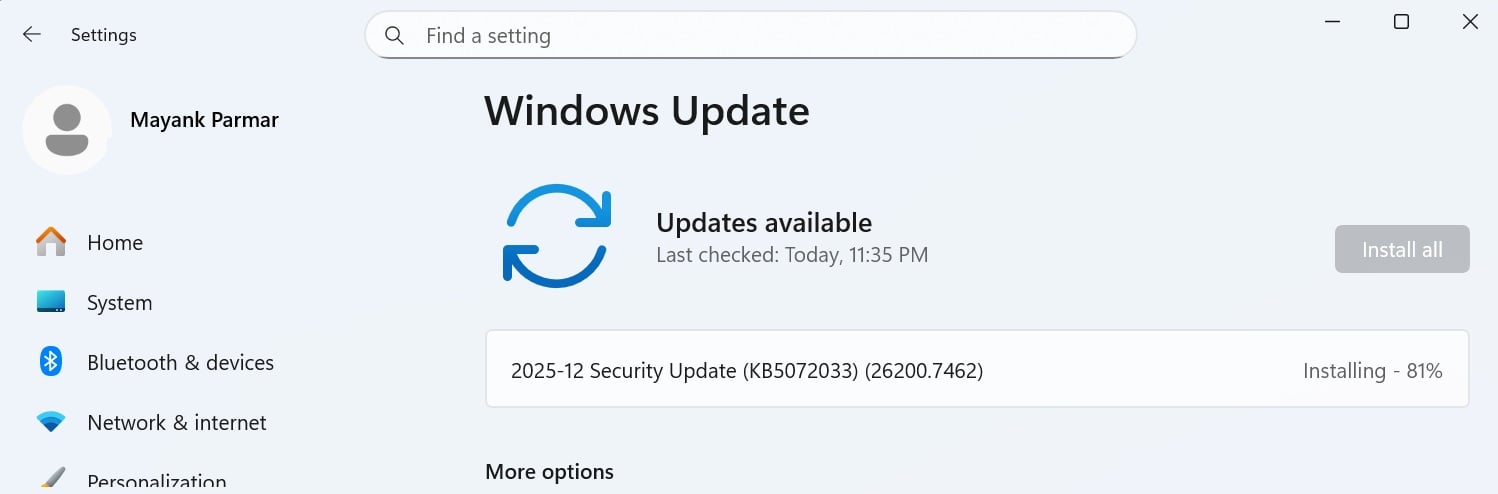
You can install today's update by going to Start > Settings > Windows Update and clicking on 'Check for Updates.'
You can also manually download and install the update from the Microsoft Update Catalog.
This is the third 'Patch Tuesday' release for version 25H2, but as it's based on version 24H2, there are no exclusive or special changes. You'll get the same fixes across the two versions of Windows 11.
What's new in the December 2025 Patch Tuesday update
After installing today's security updates, Windows 11 25H2 (KB5072033) will have its build number changed to Build 26200.7462 (or 26100.7462 in case of 24H2), and 23H2 (KB5068865) will be changed to 226x1.6050.
The biggest highlight of the update is the dark mode support for dialogs in File Explorer and new Virtual Workspaces settings for managing features like Sandbox:
-
[Advanced Settings] New! You can now turn on Virtual Workspaces in Advanced Settings. Virtual Workspaces allow you to enable or disable virtual environments such as Hyper-V and Windows Sandbox. To access Virtual Workspaces, go to Settings > Systems > Advanced.
-
[Desktop Spotlight] New! When Windows Spotlight is set as your desktop background (Settings > Personalization > Background), the context menu now includes two options: Learn more about this background and Next desktop background.
-
[File Explorer]
-
New! File Explorer now offers a more consistent dark mode experience. Key actions such as copy, move, and delete dialogs have been updated in both default and expanded views. Progress bars and chart views now align with the dark theme to improve readability. Confirmation dialogs for actions like skip, override, and file selection, along with multiple error dialogs, have also been refreshed for a cohesive look.
-
New! The simplified File Explorer context menu for easier navigation. Common actions like Share, Copy, and Move now appear in a single organized menu. This change removes clutter and makes commands easier to find, whether you use a mouse, keyboard, or assistive technology. This change will initially be available to a small group of devices as we evaluate the best approach.
-
[Gaming] New! The full-screen experience (FSE) is now available on more Windows 11 handheld devices after its initial launch on ASUS ROG Ally and ROG Ally X. FSE gives you a console-style interface with the Xbox app, making handheld gaming clean and distraction-free. It improves performance by minimizing background tasks, so gameplay stays smooth and responsive. To turn it on, go to Settings > Gaming > Full screen experience, and set Xbox as your home app. You can open FSE from Task View or Game Bar, or configure your handheld to enter full-screen experience on startup.
-
-
[Input] New! Pens that support haptic feedback—small vibrations that simulate touch—now provide tactile responses when you interact with the Windows interface. For example, you might feel vibrations when hovering over the close button or when snapping and resizing windows.
-
[Keyboard] New! Keyboard backlight performance has improved on supported HID-compliant keyboards. Compatible keyboards display keys clearly in low-light environments, and the backlight adjusts to help conserve power.
-
[Mobile Device Settings] New! You can add and manage your mobile devices in Settings under Bluetooth & Devices › Mobile Devices. On this page you can manage features such as using your device as a connected camera or accessing your device’s files in File Explorer.
-
[OneDrive] New! The new OneDrive icon now appears in Settings > Accounts > Homepage.
-
[Recovery] New! Quick Machine Recovery (QMR) now runs a one-time scan on PCs with settings quick machine recovery and automatically check for solutions are both turned on. If a fix isn’t available immediately, QMR directs you to the best recovery options to get your PC running again
-
[Settings]
-
New! Keyboard settings for "character repeat delay and rate", and "cursor blink rate", have moved from Control Panel to Settings. You can now find "character repeat delay and rate" under Settings > Accessibility > Keyboard, and "cursor blink rate" under Settings > Accessibility > Text cursor.
-
New! Settings now has an updated layout that organizes device details and related options in one place. You can quickly access features such as Storage settings for faster navigation.
-
-
[Taskbar & System Tray]
-
New! Animations for app groups on the taskbar have been updated. When you hover over app groups on the taskbar, you can see the preview transition as you slide between apps.
-
New! You can now share an open app window with Copilot directly from the taskbar. When you hover over an open app, you’ll see the option to share its window with Copilot—similar to sharing in Microsoft Teams. Hover over the app icon, select Share with Copilot to start a conversation. Copilot Vision will analyze the content you shared and provide insights based on what’s displayed in that app.
-
Fixed: The Automatically hide the taskbar setting might unexpectedly turn off, after seeing a message saying a toolbar is already hidden on this side of your screen.
-
-
[Widgets]
-
New! You can choose a default dashboard in Widget Board settings. When live weather is showing, the Widget Board opens the first dashboard in your navigation bar instead of the most recently used one, making the experience consistent. To set your default dashboard, open the full-page Widgets Settings by selecting Settings in the navigation bar, then move your preferred dashboard to the top.
-
New! Dashboard icons in the Widget navigation bar now show numbers that correspond to the number of alerts from that dashboard. Navigation bar badges clear automatically when you leave a dashboard, making it easy to track what’s new.
-
-
[Windows Share]
-
New! 2 Drag tray now supports multi-file sharing, shows more relevant apps, and makes it easy to move files to a chosen folder.
-
New! 2 You can now turn drag tray on or off from Settings > System > Nearby sharing.
-
New! 3 You can share OneDrive files through other apps. The options appear under Share using when you select the Copy link. You must be signed into your Microsoft account.
-
-
[Display and Graphics]
-
Improved: Performance has been improved when apps query monitors for their full list of supported modes. When this happens it could previously lead to a momentary stutter on very high-resolution monitors. This work should help prevent and reduce stuttering in these scenarios.
-
-
[Game Pass] References to Game Pass in Settings are now modified to reflect updated branding and benefits.
-
[Start menu] Improved: For users with the new Start menu, the Windows Search panel now matches the new Start menu in size. This update aims to create a smoother transition when searching.
All these features are rolling out gradually, so it'll be a while before they show up on your PC.
At the moment, Microsoft is not aware of new issues with this month's Patch Tuesday.
Microsoft also confirmed that it will not be releasing optional updates in December, as most of the engineers will be away for the holidays. Updates will resume in January.

Break down IAM silos like Bitpanda, KnowBe4, and PathAI
Broken IAM isn't just an IT problem - the impact ripples across your whole business.
This practical guide covers why traditional IAM practices fail to keep up with modern demands, examples of what "good" IAM looks like, and a simple checklist for building a scalable strategy.
如有侵权请联系:admin#unsafe.sh