Home > Documentation, macOS > Disabling the floating thumbnail preview for screenshots on macOS 2025-11-27 20:4:32 Author: derflounder.wordpress.com(查看原文) 阅读量:29 收藏
Home > Documentation, macOS > Disabling the floating thumbnail preview for screenshots on macOS Tahoe
Disabling the floating thumbnail preview for screenshots on macOS Tahoe
One of the features available when taking screenshots is the option to see a floating thumbnail preview of the screenshot before it gets saved to the location you’ve chosen to save screenshots to. This option is enabled by default and looks like this on macOS Tahoe.
- Screenshot is taken.
- Floating thumbnail preview appears and slides off-screen.
- Screenshot file icon appears (in this example, screenshots are being saved to the desktop.)

I prefer to have this option turned off, as I’d rather have the ability to select and work with the screenshot file right away in place of waiting for the floating thumbnail to appear and disappear.
Fortunately, this option can be turned off in a couple of ways. The first is through using Screenshot.app, which is included with macOS.

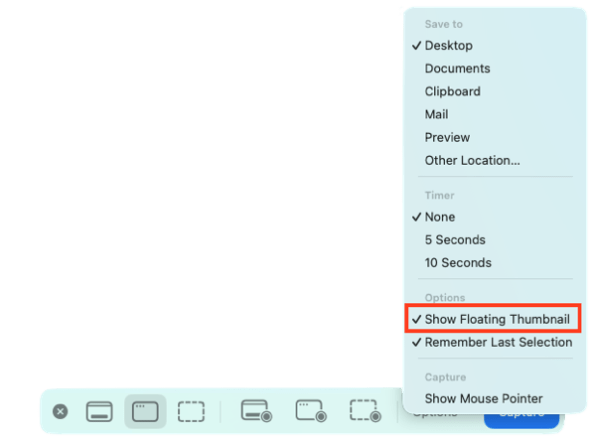
When you use Screenshot.app, it will provide a toolbar for selecting screenshot image or screencapture movie options. As part of that toolbar, there is an Options button.

When you click the Options button, you get a menu where one of the selections is Show Floating Thumbnail. If you unselect that, the floating thumbnail preview no longer appears when taking screenshots or making screencapture movies.

You can also disable this from the command line, by running the two following commands in Terminal:
This file contains hidden or bidirectional Unicode text that may be interpreted or compiled differently than what appears below. To review, open the file in an editor that reveals hidden Unicode characters.
Learn more about bidirectional Unicode characters
| /usr/bin/defaults write com.apple.screencapture show-thumbnail -bool false | |
| killall SystemUIServer |

In my case, I wanted to disable the floating thumbnail preview on my Macs so I’ve written a profile which can enforce this. It’s available via the link below:
https://github.com/rtrouton/profiles/blob/main/DisableScreenshotFloatingThumbnail
如有侵权请联系:admin#unsafe.sh