One of the capabilities Apple added in macOS Sonoma was a pluggable authentication module (PAM) 2025-11-14 17:20:46 Author: derflounder.wordpress.com(查看原文) 阅读量:22 收藏
One of the capabilities Apple added in macOS Sonoma was a pluggable authentication module (PAM) configuration option to enable Touch ID authentication for the sudo tool which would persist and not be overwritten by software updates.
To enable this option, there is a /etc/pam.d/sudo_local.template file on macOS Sonoma and later which appears as shown below:
This file contains hidden or bidirectional Unicode text that may be interpreted or compiled differently than what appears below. To review, open the file in an editor that reveals hidden Unicode characters.
Learn more about bidirectional Unicode characters
| # sudo_local: local config file which survives system update and is included for sudo | |
| # uncomment following line to enable Touch ID for sudo | |
| #auth sufficient pam_tid.so |
Copying the /etc/pam.d/sudo_local.template file to /etc/pam.d/sudo_local and uncommenting the indicated line allows Touch ID to work as authentication for the sudo tool.
This file contains hidden or bidirectional Unicode text that may be interpreted or compiled differently than what appears below. To review, open the file in an editor that reveals hidden Unicode characters.
Learn more about bidirectional Unicode characters
| # sudo_local: local config file which survives system update and is included for sudo | |
| # uncomment following line to enable Touch ID for sudo | |
| auth sufficient pam_tid.so |

A number of Mac admins have written scripts to apply this PAM configuration to Macs, but there didn’t seem to be a good way to handle this without scripting. However, as part of Apple’s unveiling of Declarative Device Management (DDM) at WWDC 2023, Apple announced that DDM management included the ability to manage sets of tamper-resistant system configuration files for different system services. As of this date, the following services built into macOS can be managed this way:
- sshd
- sudo
- PAM
- CUPS
- Apache httpd
- bash
- zsh
Jamf Pro’s Blueprints supports managing these services via the Service configuration files component. Since enabling Touch ID authentication for sudo is managed using a PAM configuration file, that means that enabling Touch ID authentication for the sudo tool can be accomplished via Blueprints. For more details, please see below the jump.
By default, macOS 26.1 ships with a /etc/pam.d/sudo_local.template file that looks like this:
This file contains hidden or bidirectional Unicode text that may be interpreted or compiled differently than what appears below. To review, open the file in an editor that reveals hidden Unicode characters.
Learn more about bidirectional Unicode characters
| # sudo_local: local config file which survives system update and is included for sudo | |
| # uncomment following line to enable Touch ID for sudo | |
| #auth sufficient pam_tid.so |
To prepare the desired PAM configuration, you can use the process described below:
- Make a copy of the /etc/pam.d/sudo_local.template file to a convenient location.
- Uncomment the last line
- Save the file and rename it to a file named sudo_local.
The newly-created sudo_local file should appear similar to what’s shown below:
This file contains hidden or bidirectional Unicode text that may be interpreted or compiled differently than what appears below. To review, open the file in an editor that reveals hidden Unicode characters.
Learn more about bidirectional Unicode characters
| # sudo_local: local config file which survives system update and is included for sudo | |
| # uncomment following line to enable Touch ID for sudo | |
| auth sufficient pam_tid.so |
To deploy this change with Blueprints, three things are needed.
1. A zip file which contains both the directory and file structure of the configuration file in question.
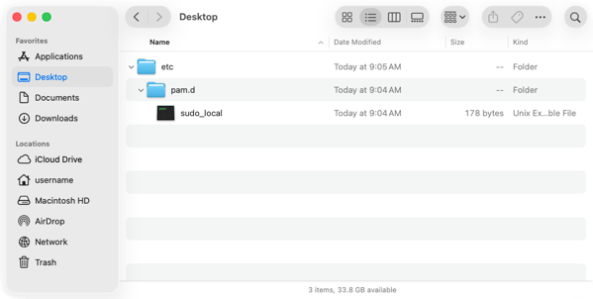
The PAM configuration file is stored in the /etc directory, with a directory inside named pam.d, with a file inside the pam.d directory named sudo_local, so a zip file containing a directory named etc, with a directory inside named pam.d, with a file inside the pam.d directory named sudo_local, is needed for this.

For this example, we’ll name the zip file as enable_touch_id_for_sudo.zip.

2. The SHA-256 hash of the zip file
You can use the sha256sum command line tool to get the SHA-256 hash of the zip file, so using a command similar to the one shown below should provide that information:
This file contains hidden or bidirectional Unicode text that may be interpreted or compiled differently than what appears below. To review, open the file in an editor that reveals hidden Unicode characters.
Learn more about bidirectional Unicode characters
| sha256sum /path/to/enable_touch_id_for_sudo.zip |
Assuming our SHA-256 hash is 0ac032ffc0d173ec102ee2d580de2c7511ab59606a56239b8c9a0fd88452c368, you should see output like this when you run the command above:
This file contains hidden or bidirectional Unicode text that may be interpreted or compiled differently than what appears below. To review, open the file in an editor that reveals hidden Unicode characters.
Learn more about bidirectional Unicode characters
| username@ZPVVQN9WPH ~ % sha256sum /Users/username/Desktop/sudoers_configuration.zip | |
| 0ac032ffc0d173ec102ee2d580de2c7511ab59606a56239b8c9a0fd88452c368 /Users/username/Desktop/sudoers_configuration.zip | |
| username@ZPVVQN9WPH ~ % |
3. A place to download the zip file from which allows downloading without authentication.
For this example, I’ve set up an S3 bucket in Amazon Web Services named 75d831079efb4d02ada44eed4f8ae093 and set the enable_touch_id_for_sudo.zip file to be publicly accessible from that S3 bucket.
Once I have all the above available, I can set up a Blueprint in Jamf Pro to deploy the Touch ID PAM configuration file as a Service configuration file.
1. Log into Jamf Pro.
2. Select Blueprints
3. Click on Service configuration.

4. Give it a name when prompted. For this example, I’m using Touch ID PAM Configuration.

5. Select a Jamf Pro smart or static group. For this example, I’m selecting a static group named Touch ID PAM Configuration Deployment Group.

6. Provide the necessary information to download the enable_touch_id_for_sudo.zip file. For this example, the following information is being used:
- Data URL: https://75d831079efb4d02ada44eed4f8ae093.s3.us-east-1.amazonaws.com/enable_touch_id_for_sudo.zip
- SHA-256 Hash: 0ac032ffc0d173ec102ee2d580de2c7511ab59606a56239b8c9a0fd88452c368
- Service definition: PAM

Once everything has been configured, click the Deploy button to deploy the changes to the Macs you want to manage.

Once deployed, the Blueprints screen in Jamf Pro should show the newly-created Touch ID PAM Configuration Blueprint as being deployed.

On your managed devices, you can verify that the new Touch ID PAM configuration has been deployed by clicking on the enrollment profile, then scrolling to the bottom. You should see a Device Declarations section, with a listing for Configuration Files: com.apple.pam.

If you click on the Configuration Files: com.apple.pam listing, it should provide the path to the tamper-resistant directory where it stored the new Touch ID PAM configuration file. This should be the following location:
/private/var/db/ManagedConfigurationFiles/com.apple.pam

Inside that directory will be the etc directory with a directory inside named pam.d, with a file inside the pam.d directory named sudo_local file that you configured for the Blueprint’s zip file. The complete file path to the new Touch ID PAM configuration should be the following:
/private/var/db/ManagedConfigurationFiles/com.apple.pam/etc/pam.d/sudo_local
You will not be able to write to this location, as it is protected by System Integrity Protection (SIP), but you should be able to read from the file and verify the contents are what’s expected.
You should also be able to verify that Touch ID authentication is now working when you use the sudo command line tool.


Hat tip to my colleague Matt Vlasach for coming up with and sharing this idea of enabling Touch ID authentication for sudo using Blueprints.
如有侵权请联系:admin#unsafe.sh