
好的,我现在需要帮用户总结这篇文章的内容,控制在100个字以内。首先,我得仔细阅读文章,理解其主要内容。 文章主要讲的是如何使用yt-dlp下载YouTube视频,并且涉及到三个主要问题:正确的编解码器选择、字幕下载以及组织良好的文件夹结构。作者一开始遇到了默认下载格式的问题,视频太小了,在Plex上播放时需要转换,这可能影响了播放体验。此外,默认命令下载到当前文件夹,不够方便,而且没有字幕。 接下来,作者通过测试找到了解决这三个问题的方法。首先,选择了H.265编解码器,因为它能提供更好的压缩率,适合 Plex 服务器使用。其次,下载了字幕,并且将默认的VTT格式转换为更兼容的SRT格式。最后,创建了一个有组织的文件夹结构,按频道和视频名称分类存储。 文章还详细介绍了如何使用yt-dlp的各种命令来实现这些功能,包括下载最佳质量视频、选择特定分辨率、批量下载整个频道或播放列表等。此外,还提到了配置文件的方法,可以自动化设置,方便后续使用。 总结一下,这篇文章是一个详细的指南,教用户如何使用yt-dlp命令来下载视频,并且优化编解码器、添加字幕以及组织文件结构,使其适合Plex媒体服务器使用。 现在我需要将这些内容浓缩到100个字以内。要抓住关键点:yt-dlp的使用、编解码器选择(H.265)、字幕处理(包括转换为SRT)、组织文件夹结构、适用于Plex服务器。 可能的表达方式是:“文章介绍了如何使用yt-dlp下载YouTube视频,并通过设置H.265编解码器、添加SRT格式字幕和创建组织良好的文件夹结构优化媒体管理。” 检查一下字数:这句话大约有35个字左右(中文),远低于100字限制。看起来没问题。 </think> 文章介绍了如何使用yt-dlp下载YouTube视频,并通过设置H.265编解码器、添加SRT格式字幕和创建组织良好的文件夹结构优化媒体管理。 2025-11-2 12:29:28 Author: www.blackmoreops.com(查看原文) 阅读量:9 收藏
Default video download codec for yt-dlp was downloading videos in webm format that was super small in size but when I wanted to play those in my Plex Media server, it was converting those for my Samsung TV. the default command simply downloads it into current folder which I didn’t like. Also I wanted subtitles which the default command doesn’t do. So the problem was three fold; find the correct codec, download subtitles and create organised folder structure. After few testing, I found these yt-dlp commands for subtitles, selecting codec, creating organised folder structures that worked quite well for me. Also default subtitle was VTT format and I prefer SRT format, so I kind of decided to add that into the command to convert that as well. In summary, this detailed guide covers essential commands for downloading videos with proper codec selection, subtitle integration, and automated folder organisation ideal for Plex media servers using yt-dlp.
A detailed guide on how to download YouTube videos using yt-dlp Commands for Subtitles, Codec & Folder
Understanding yt-dlp Command Structure
Before diving into specific yt-dlp commands, understanding the basic command structure helps you customise downloads effectively:
yt-dlp [OPTIONS] URL
Options control everything from video quality to subtitle languages and output locations. Let’s explore the most useful commands for organised media management.
Essential yt-dlp Commands for Basic Downloads
Default Command
yt-dlp URL
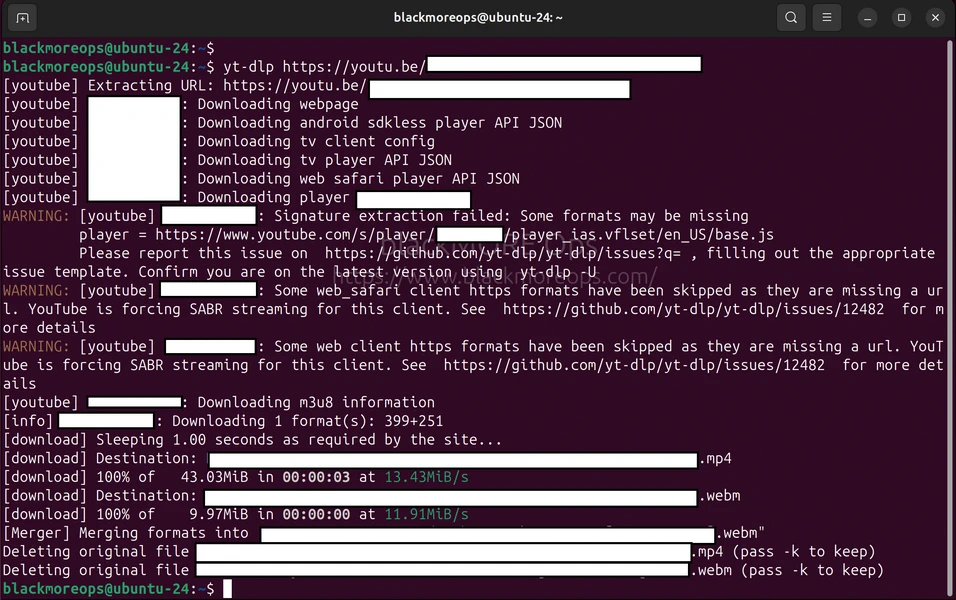
CLI showing yt-dlp downloading YouTube video with default format – 2
Download Best Quality Video
yt-dlp -f "bestvideo+bestaudio" URL
This downloads the highest quality video and audio streams available, merging them into a single file.
Download Best Quality with Codec Preference
yt-dlp -S "codec:h265" -f "bestvideo*+bestaudio/best" URL
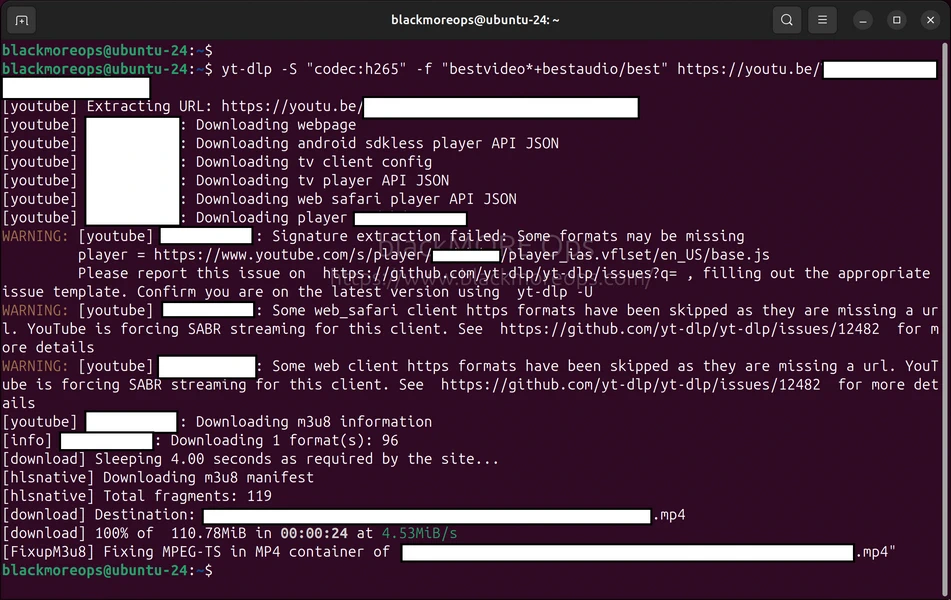
Downloading Best Quality YouTube Video using yt-dlp
Prioritises H.265 (HEVC) codec for better compression whilst maintaining quality—perfect for reducing storage requirements.
List Available Formats
yt-dlp -F URL
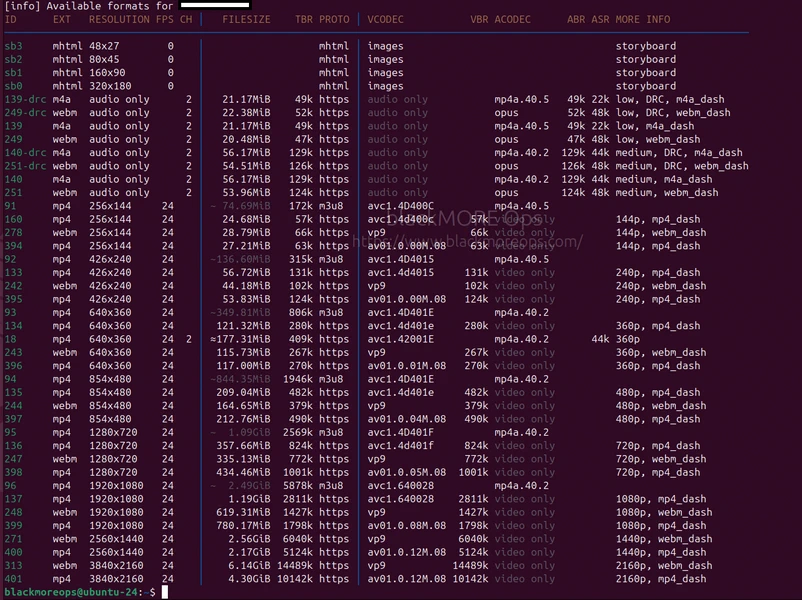
Downloading 4K YouTube Video with yt-dlp
Displays all available video and audio formats with their IDs, resolutions, and codecs before downloading. So you might select e.g. MKV instead.
yt-dlp Commands with H.265 Codec Selection
I prefer H.265 codec. H.265 codec provides approximately 50% better compression than H.264 whilst maintaining video quality, making it ideal for large media libraries and Plex servers. If you have a different opinion, leave a comment and I will test that.
Download with H.265 Preference
yt-dlp -S "codec:h265" -f "bestvideo*+bestaudio/best" URL
This command prioritises H.265 encoded videos but falls back to the best available format if H.265 isn’t available.
Force Specific Resolution with H.265
yt-dlp -S "res:1080,codec:h265" -f "bestvideo[height<=1080]+bestaudio/best" URL
Limits download to 1080p maximum with H.265 codec preference, perfect for balancing quality and file size.
Download 4K with H.265
yt-dlp -S "res:2160,codec:h265" -f "bestvideo[height<=2160]+bestaudio/best" URL
Downloads 4K content when available, prioritising H.265 encoding for manageable file sizes.
Subtitle Download Commands
Subtitles enhance accessibility and are essential for foreign language content. These commands for subtitles download handle various subtitle scenarios.
Download English Subtitles
yt-dlp --write-subs --sub-langs "en" URL
Downloads English subtitles as a separate file alongside the video.
Download Multiple Subtitle Languages
yt-dlp --write-subs --sub-langs "en,es,fr,de" URL
Downloads subtitles in English, Spanish, French, and German, creating separate files for each language.
Convert Subtitles to SRT Format
yt-dlp --write-subs --sub-langs "en" --convert-subs srt URL
Downloads subtitles and converts them to SRT format, offering the widest compatibility with media players and Plex.
Download Auto-Generated Subtitles
yt-dlp --write-auto-subs --sub-langs "en" --convert-subs srt URL
Downloads YouTube’s automatically generated subtitles when manual subtitles aren’t available.
Embed Subtitles in Video File
yt-dlp --embed-subs --sub-langs "en" URL
Embeds subtitles directly into the video file (works with MKV and MP4 containers).
Download All Available Subtitles
yt-dlp --write-subs --sub-langs "all" --convert-subs srt URL
Downloads subtitles in every available language, useful for international content collections.
Organised Folder Structure Commands
Proper organisation is crucial for maintaining large media libraries, especially when integrating with Plex. These yt-dlp commands creates nicely organised folder hierarchies.
Basic Organisation by Channel and Video
yt-dlp -o "%(uploader)s/%(title)s/%(title)s.%(ext)s" URL
Creates structure:
Channel Name/
└── Video Title/
    └── Video Title.mp4
Complete Plex-Ready Download Command
yt-dlp -S "codec:h265" -f "bestvideo*+bestaudio/best" --write-subs --sub-langs "en" -o "%(uploader)s/%(title)s/%(title)s.%(ext)s" URL
yt-dlp -S "codec:h265" -f "bestvideo*+bestaudio/best" --write-subs --sub-langs "en" --convert-subs srt -o "%(uploader)s/%(title)s/%(title)s.%(ext)s" URL
This command:
- Prioritises H.265 codec
- Downloads best quality
- Includes English VTT (default) or convted SRT subtitles
- Organises by channel and video name
The best command to download YouTube videos with correct codec, subtitles and a very organised folder structure
yt-dlp -S "codec:h265" -f "bestvideo*+bestaudio/best" --write-subs --sub-langs "en" --convert-subs srt -o "%(uploader)s/%(title)s/%(title)s.%(ext)s" URL
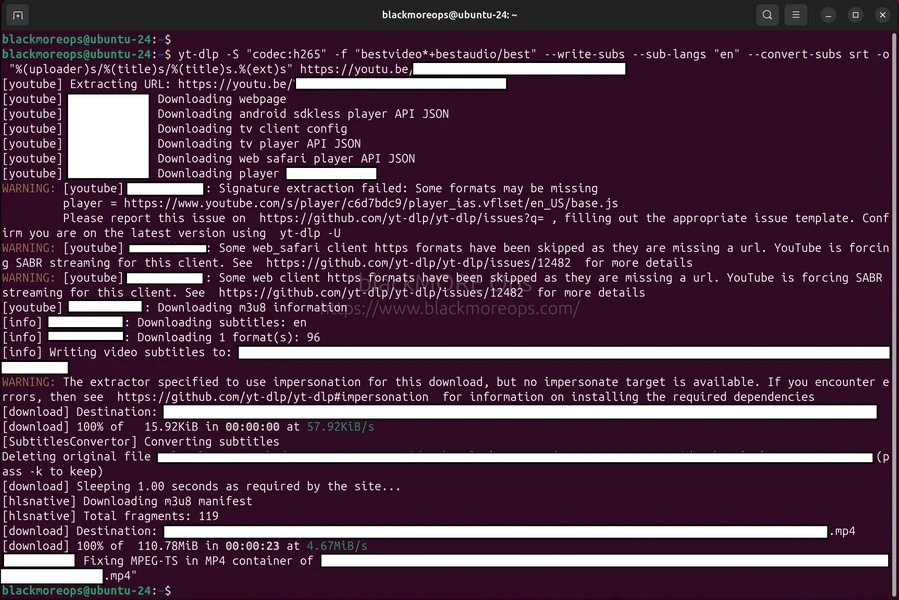
Command line terminal showing yt-dlp downloading YouTube video with organised folder structure 2
Result:
Tech Channel/
└── Amazing Tutorial/
    ├── Amazing Tutorial.mp4
    └── Amazing Tutorial.en.srt/vtt
Playlist Organisation
yt-dlp -S "codec:h265" -f "bestvideo*+bestaudio/best" --write-subs --sub-langs "en" -o "%(playlist_uploader)s/%(playlist)s/%(title)s.%(ext)s" PLAYLIST_URL
yt-dlp -S "codec:h265" -f "bestvideo*+bestaudio/best" --write-subs --sub-langs "en" --convert-subs srt -o "%(playlist_uploader)s/%(playlist)s/%(title)s.%(ext)s" PLAYLIST_URL
Creates playlist-based structure:
Channel Name/
└── Playlist Name/
    ├── Video 1.mp4
    ├── Video 1.en.srt/vtt
    ├── Video 2.mp4
    └── Video 2.en.srt/vtt
Batch Download Commands
Download multiple videos efficiently whilst maintaining organisation.
Download Entire Channel
yt-dlp -S "codec:h265" -f "bestvideo*+bestaudio/best" --write-subs --sub-langs "en" --convert-subs srt -o "%(uploader)s/%(title)s/%(title)s.%(ext)s" CHANNEL_URL
Download Specific Playlist Items
yt-dlp --playlist-items 1,5,7-10 -o "%(uploader)s/%(playlist)s/%(title)s.%(ext)s" PLAYLIST_URL
Downloads videos 1, 5, 7, 8, 9, and 10 from the playlist.
Download Latest 5 Videos from Channel
yt-dlp --playlist-end 5 -o "%(uploader)s/%(title)s/%(title)s.%(ext)s" CHANNEL_URL
Reverse Playlist Order
yt-dlp --playlist-reverse -o "%(uploader)s/%(playlist)s/%(title)s.%(ext)s" PLAYLIST_URL
Configuration File Approach
Create a persistent configuration file for default settings.
Linux/macOS: ~/.config/yt-dlp/config
Windows: %APPDATA%\yt-dlp\config.txt
Example configuration:
# Video quality and codec
-S codec:h265
-f bestvideo*+bestaudio/best

# Subtitles
--write-subs
--sub-langs en
--convert-subs srt

# Organisation
-o %(uploader)s/%(title)s/%(title)s.%(ext)s

# Metadata
--embed-metadata
--embed-thumbnail

# Download archive
--download-archive ~/.yt-dlp-archive.txt
With this configuration, simply run:
yt-dlp URL
All settings apply automatically.
Next Steps
Now that you’ve pretty much covered yt-dlp commands for subtitles, codec selection and creating folder structures:
- Install yt-dlp on your system if you haven’t already
- Set up YTPTube web GUI for easier management (coming soon)
- Explore Docker-based media automation
For home server setups, check out our Unraid NAS installation guide covering complete media server infrastructure.
Conclusion
The above yt-dlp commands for subtitles, codecs and creating organised folder strcutures provides good control over your video library management. From codec selection to subtitle handling and folder organisation, these commands create professional-grade media collections compatible with Plex and other media servers. For me, the key to successfully playing videos without buffering was using quality control (H.265 codec), accessibility (subtitles), and organisation (structured folders).
That’s it, Enjoy!
如有侵权请联系:admin#unsafe.sh